Guides
Analytics & reporting
Read your dashboard and analytics, understand how views, virality and engagement are calculated, and export what you need.
What analytics covers
Once you connect TikTok and Instagram accounts, Gromore turns every synced video into analytics you can read across your whole workspace. There are two places to look: the Dashboard, which gives you the big-picture rollup, and the Analytics section, where you can drill into a single account, browse individual videos, and check the specific posts you've tracked by URL.
Everything you see is built from real synced data. Numbers refresh on your plan's sync cadence (plus any manual refresh you run), so analytics update after the next sync completes rather than in real time. If an account hasn't synced yet, its cards stay empty until the first sync lands.
Reading the Dashboard
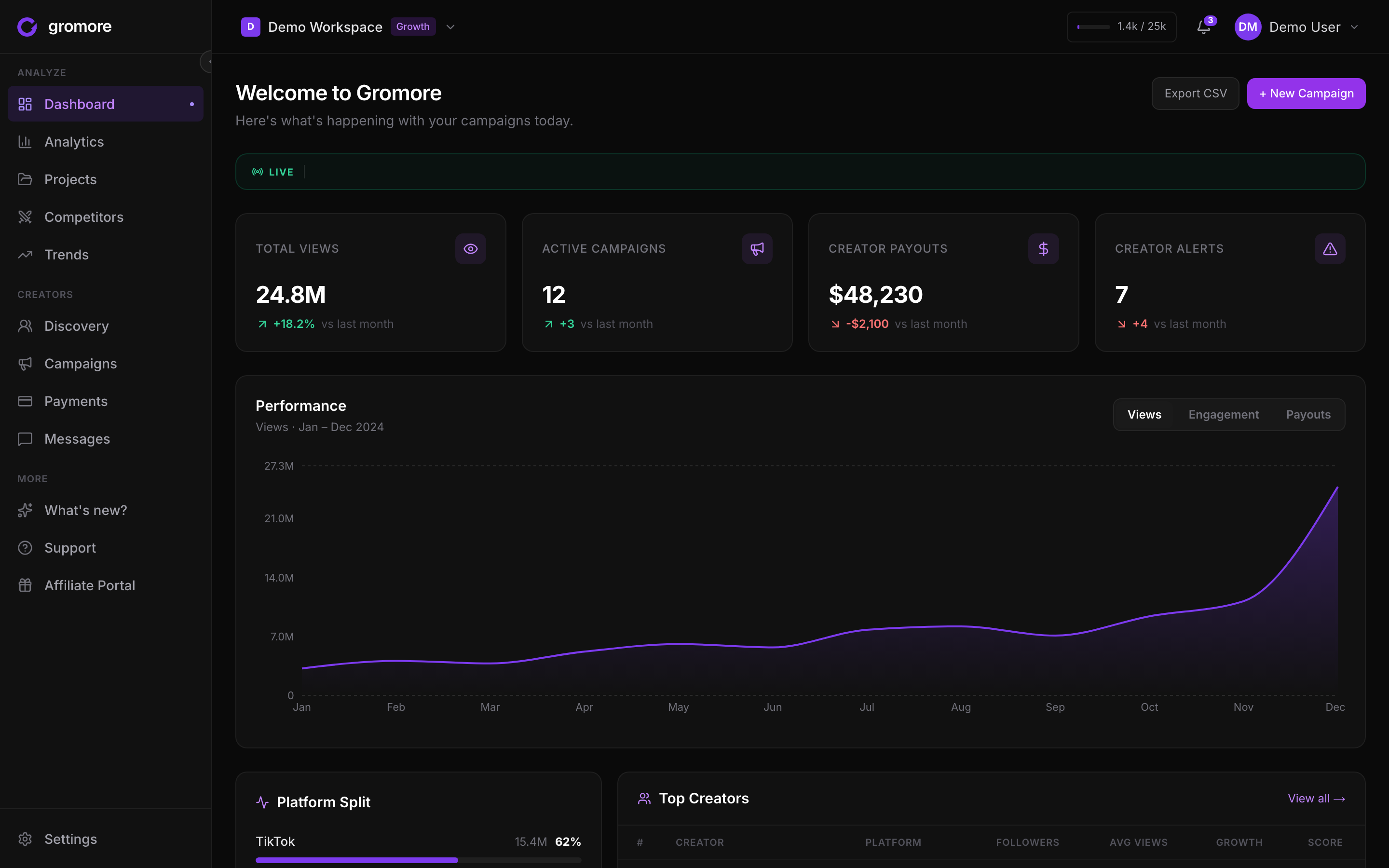
The Dashboard is your home view. Across the top, KPI cards summarize your workspace at a glance — total views, active campaigns, tracked videos, and recorded payouts — so you can see momentum without opening anything.
Below the KPIs, Platform Split shows how your reach breaks down between TikTok and Instagram, and Top Creators ranks the accounts driving the most performance right now. The performance chart plots activity by the video's posting date, not the sync date — so a spike on the chart lines up with when content actually went live, which makes it easy to connect a jump in views to a specific drop.
Use the Dashboard to spot what's working, then click through to an account or campaign when you want the detail behind a number.
Accounts, Videos, and Tracked Videos
Open Analytics to see the list of accounts you're tracking. Each row summarizes an account's performance; select one to open its detail view with its own KPIs, chart, and video list.
The Videos tab pulls individual posts into one place so you can sort and scan across accounts. Alongside it, the Tracked Videos view holds any single posts you added with Custom Video Tracking — paste a video URL to follow just that one post, even if you don't track the whole account. Each video shows its views, engagement, and a virality read so standout posts are easy to find.
- 1Go to Analytics to view your tracked accounts list.
- 2Select an account to open its detailed analytics.
- 3Open the Videos tab to browse individual posts, or switch to Tracked Videos for posts you added by URL.
- 4Sort or filter to surface your top or weakest performers.
How the numbers are calculated (and kept honest)
Virality and engagement aren't stored — they're computed at display time from each video's live figures. Engagement is the reaction rate (likes and comments against views), and virality scores whether a post punched above the account's typical performance rather than just rewarding big accounts. Because they're calculated on read, they always reflect the latest synced data.
Views are the public, logged-out numbers — the same count anyone sees without signing in. Brand-new posts can briefly lag, then converge to their true figure as they age; the interface labels this so you're never surprised by a young video's low count.
When a creator hides their likes, Gromore shows Hidden instead of guessing a number. That keeps your analytics honest rather than filling gaps with estimates.
Exporting and historical range
Analytics tables include an Export CSV option so you can pull the underlying rows into a spreadsheet for your own reporting. Account views also offer an Export Report action that generates a shareable PDF summary of the current range.
Use the date-range selector to focus a view — for example the last 7, 30, or 90 days, or All Time. Longer historical ranges are a Growth and Agency feature; on the trial and Starter plans the window is shorter. Your exact limits, along with live usage, are always shown in Settings → Billing.