Guides
Trends & Discovery
Two Growth-plan research tools — a library of viral videos and a marketplace of registered creators — that help you find winning content ideas and the people to make them.
What Trends & Discovery are for
Trends and Discovery are two research tools that sit alongside your own tracking. Instead of showing your accounts, they help you find ideas and people: Trends is a browsable library of high-performing videos, and Discovery is a marketplace of registered creators you can view, save, and invite to a campaign.
Both are available on the Growth and Agency plans. On trial or Starter you'll see an upgrade prompt in their place. You can confirm what your plan includes anytime in Settings → Billing, which shows your live usage and caps.
Neither tool touches your video credits. Browsing trends and viewing creator profiles read from a shared library, not from your own tracked accounts, so nothing here counts against your monthly quota. Saving, inviting, and generating briefs are edit actions, so a workspace viewer can browse both tools but not act in them.
Browse the Trends library
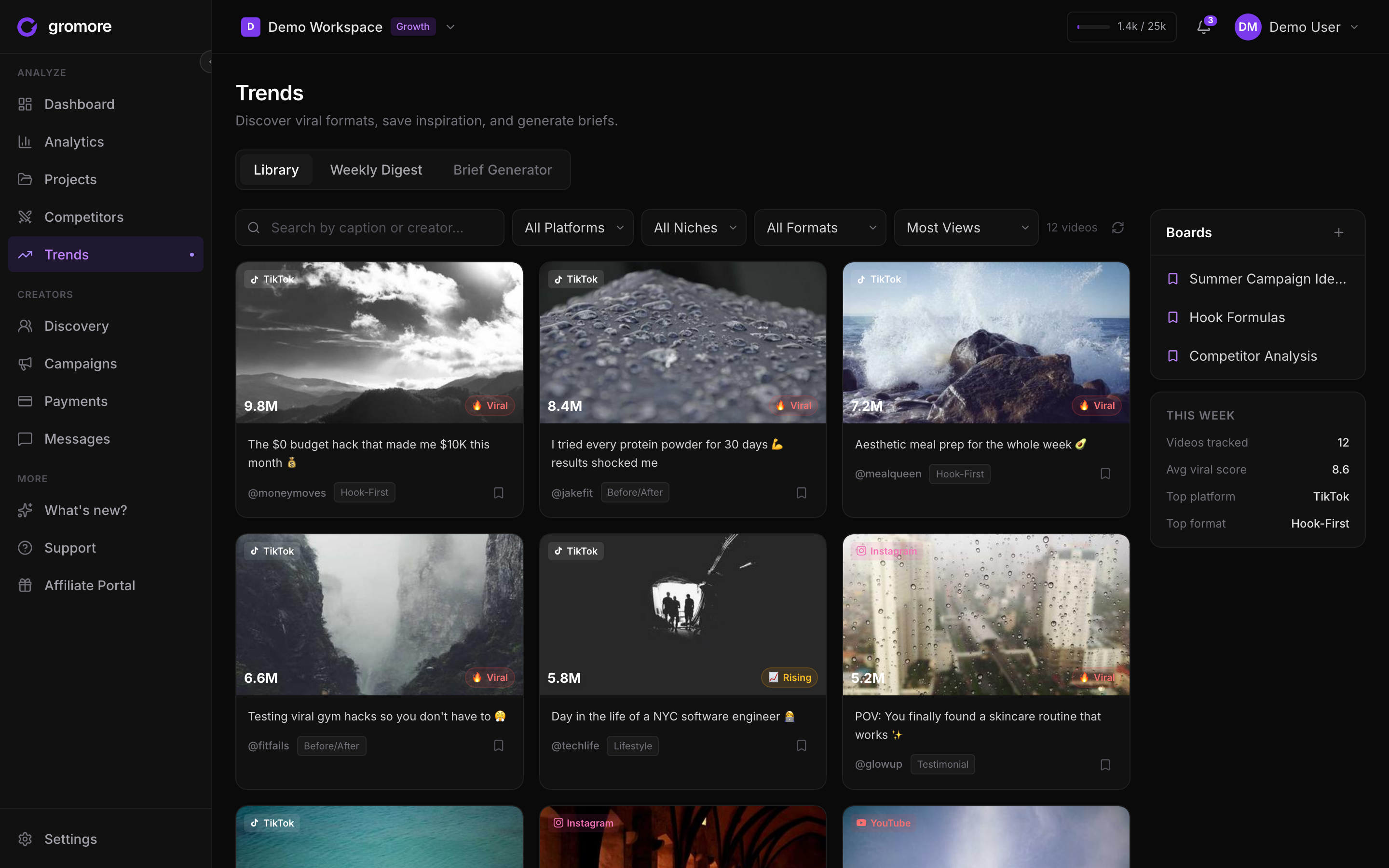
The Library tab is a grid of viral videos from TikTok and Instagram. Each card shows the thumbnail, caption, creator handle, public view count, a content-format tag, and a virality badge — Viral, Rising, or Normal — based on how fast the video is growing.
Use the filters along the top to narrow by platform, niche, and content format (product demo, testimonial, lifestyle, hook-first, before/after, or storytime). Sort by most views, fastest growing, or newest, or search by caption or creator handle. Click any card to open a detail panel with the full stats.
Save anything worth revisiting to a Board — your own named collections of reference videos, shown in the right rail. Create as many as you need, for example one per client, campaign, or content theme.
- 1Open Trends from the sidebar and stay on the Library tab.
- 2Filter by platform, niche, or format, then sort or search to find what you want.
- 3Click a video to view its full details, or use the bookmark to save it.
- 4Pick an existing Board or create a new one to save the video into.
Read the Weekly Digest
The Weekly Digest tab rolls the library up into a quick read: total videos, average virality, the top niche and platform, and the three strongest videos of the week. Charts break the week down by niche, platform split, and content format.
It's the fastest way to see what's working right now without scrolling the whole grid — a good starting point before you plan a shoot or a campaign. From the digest you can jump straight into the Brief Generator.
Views shown here are the public, logged-out numbers, and virality is calculated at display time, so the figures shift as the underlying videos age and their counts converge.
Turn trends into a creative brief
The Brief Generator takes a handful of reference videos and turns them into a starter creative brief you can hand to a creator. It's a short three-step flow that pairs the videos you picked with a little context about your campaign.
The finished brief pulls together hook options, a suggested video structure, dos and don'ts, recommended durations, caption ideas, and hashtag suggestions. From there you can copy it, export it to PDF, or send it straight to one of your campaigns.
- 1Select 3–5 reference videos from the library as your inspiration.
- 2Add campaign context — brand, product, goal, audience, tone, and platform focus.
- 3Generate the brief, then copy it, export it to PDF, or send it to a campaign.
Find and invite creators with Discovery
Discovery is a marketplace of creators who have registered with Gromore. Each profile shows their niches, languages, location, and verification, along with their connected TikTok and Instagram accounts and stats like follower count, average views, and engagement.
Search the roster, then open Filters to narrow by platform, niche, follower range, engagement, location, or language, and sort by relevance, followers, engagement, or how recently a creator joined. Save the ones you like — the relationship chips (All, Saved, Invited, Accepted) let you jump back to them later.
To work with a creator you invite them to one of your campaigns, so you'll need at least one campaign created first. Add a short message and send; the creator is notified and can accept from their own dashboard, after which you can message them to coordinate. Inviting a creator here is separate from inviting a teammate to your workspace, and separate from the creator records you keep under Payments.
- 1Open Discovery and search or filter to find creators that fit your brief.
- 2Save promising creators, or open a profile to see their full stats.
- 3Click Invite, choose the campaign, add a message, and send.
- 4When a creator accepts, use Message to coordinate the collaboration.