Creator payments
Campaigns
Set up a creator campaign, define its payout rules, generate suggested payouts in a batch, and keep its history clean by cloning instead of rewriting.
What campaigns are
A campaign is where you group the creators and accounts working on one brief, set the rules for what each post is worth, and turn tracked performance into payouts you can record and approve. It sits inside Creator payments, alongside Creators and Payouts.
Campaigns are a Growth or Agency feature. Everything here is record-mode: Gromore calculates and records what you owe and keeps the audit trail, but it never moves money. You mark payouts as paid once you've sent them through your own bank or payout tool.
Set a campaign up before your creators start posting. That way every eligible video is captured under the right rules from day one, and your payout math is right the first time.
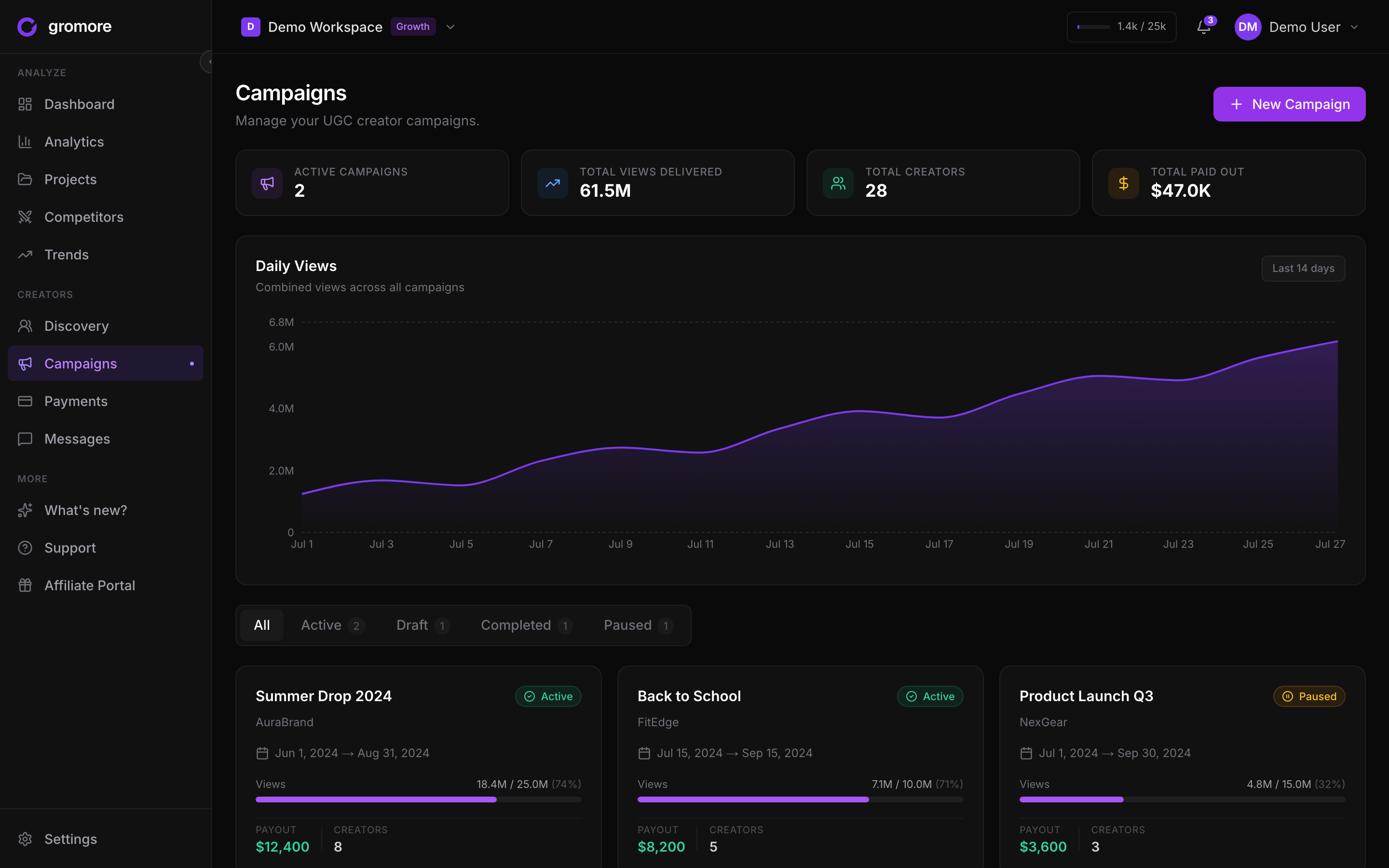
Create a campaign and connect creators
A campaign draws its numbers from the creators and TikTok or Instagram accounts you attach to it. Add your creators first (in Creators), make sure their accounts are connected and syncing, then build the campaign around them.
Once creators are attached, their tracked videos flow into the campaign automatically as they sync, so views and other metrics stay current without extra work from you.
- 1Open Creator payments and go to Campaigns.
- 2Create a new campaign and give it a clear name and description for your team.
- 3Attach the creators taking part, so their connected accounts feed the campaign.
- 4Confirm each creator's accounts are already tracked and syncing (add them in Creators first if not).
- 5Set your payout rules (next section), then save.
The payout rules engine
Each campaign has a rules engine that turns performance into an amount owed per creator. You can combine four building blocks, and use as many or as few as the brief needs.
Base is a flat amount per creator or per video. CPM pays per thousand views, so payout scales with reach. A milestone bonus adds a one-time amount when a video crosses a threshold you set. A cap puts a ceiling on the total, so a runaway video can't blow past your budget.
When one creator's deal differs from the campaign default, add a per-creator override instead of building a separate campaign. The override replaces the campaign rule for just that creator; everyone else stays on the shared rules.
Batch-suggested payouts
When it's time to pay out, Gromore reads each creator's eligible video performance, applies the campaign rules (and any overrides), and proposes an amount for everyone in one batch. It's a fast way to go from tracked views to a payout list without adding up numbers by hand.
The suggestions are a starting point, not a commitment. Review each line, adjust anything that needs a manual tweak, then send the payouts into your queue. From there they go through the normal approval and mark-as-paid flow, with an append-only audit trail (with two or more admins, no one can approve their own payout). See the Payouts article for that step.
- 1Open the campaign and choose to create payouts for its creators.
- 2Let Gromore suggest an amount per creator from their eligible videos and the campaign rules.
- 3Review and adjust any individual amounts.
- 4Send the batch into your payout queue for approval and, later, mark as paid.
Clone a campaign instead of rewriting its history
A campaign is a record of what people were actually paid under a specific set of rules. If the terms change partway through (a new CPM rate, a different bonus, a fresh budget), don't edit the old campaign's rules out from under payouts you've already recorded. That rewrites history and makes your audit trail hard to trust.
Instead, start a fresh campaign for the new terms. Give it a clear name, attach the creators, and set the new rules there. The finished campaign keeps its clean record of what was paid, and the new one carries the new deal forward. This keeps each campaign honest about the rules that were in force when its payouts happened.