Guides
Tracking accounts & videos
Add TikTok and Instagram creator accounts for ongoing tracking, or track a single video by URL — plus how syncing, credits, and account cleanup work.
How tracking works
Tracking is where every Gromore workspace starts. Once an account or video is being tracked, its performance flows into your analytics, and you can build creators, campaigns, and payout records on top of it.
There are two ways to track. Add a creator account (TikTok or Instagram) to follow everything they post going forward, or use Custom Video Tracking to watch a single post by pasting its URL. Gromore supports TikTok and Instagram creators.
Everything you see in the app is built from public data, refreshed on a schedule, and metered by video credits. The sections below cover each piece so you know what to expect before, during, and after a sync.
Add a creator account
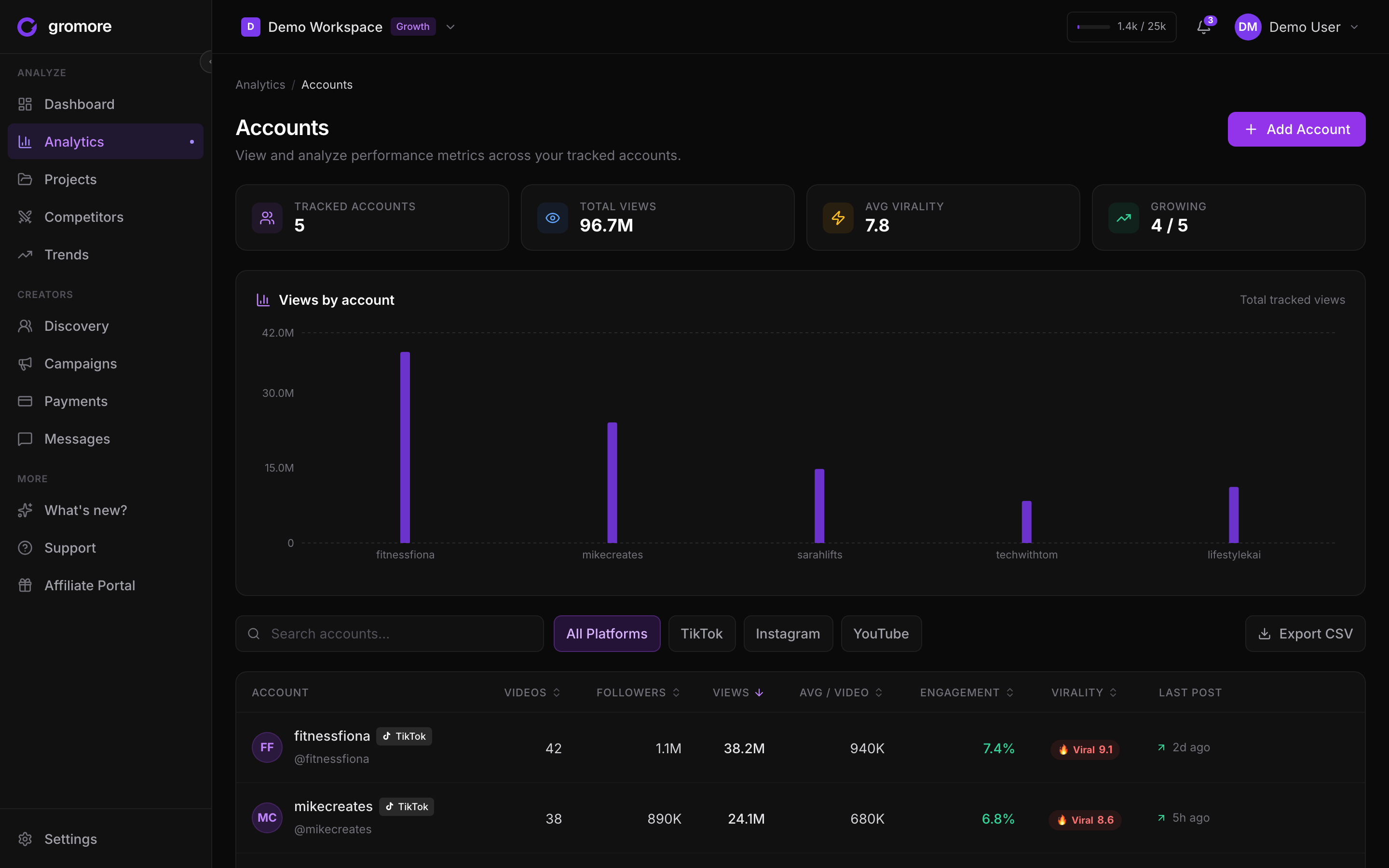
Adding a creator account tells Gromore to keep tracking that profile over time. New posts are picked up automatically on your plan's schedule, and each account shows its followers, views, and engagement in one place.
Gromore validates the handle before it starts, so if a username can't be found or the profile is private, you'll see a clear reason rather than an empty account.
You can track your own accounts, creators you work with, or accounts you simply want to keep an eye on. To watch a competitor's account specifically, use the Competitors area instead.
- 1Go to the Accounts view in your workspace.
- 2Choose Add account and pick the platform — TikTok or Instagram.
- 3Enter the creator's username (or paste their profile URL).
- 4Confirm to start tracking. Gromore checks the handle and kicks off the first sync.
Track a single video
Sometimes you don't need a whole profile — you just want to follow one post. Custom Video Tracking lets you paste a single TikTok or Instagram video URL and track only that video.
Gromore starts monitoring that post's performance and adds it to your analytics. You'll find tracked videos under Analytics, in the Tracked Videos tab, alongside the rest of your data.
This is handy for one-off collaborations, a single sponsored post, or any video you want to watch without committing to the creator's full account.
First sync, refresh cadence, and retries
The first sync builds the account's history: Gromore pulls in the creator's recent posts and their public metrics, then keeps them up to date over time. A first sync can take a little while, so it's normal to see the account fill in gradually.
After that, refreshes run on a plan-based cadence — higher plans refresh more often. You can also refresh an account manually at any time, on every plan. The only limit is a short pause of about ten minutes between two manual refreshes of the same account; refreshing a different account is never blocked, so you can update your whole roster in one go. If a first sync fails for a transient reason, Gromore automatically retries it for you.
A note on the numbers: views are the public, logged-out figures anyone would see without an account. The newest posts can lag briefly, then converge as they age, and the UI labels this. When a creator hides their likes, Gromore shows "Hidden", and virality and engagement are calculated live when you view them.
Credits, pausing, and deleting
Gromore meters usage with video credits, and this works differently from tools that charge against a tracking limit you pick up front. You spend a credit only when a genuinely new video is actually captured — not for a cap you chose in advance, and not for videos you already had. Credits are pooled across all the workspaces you own, so one balance covers your whole account. Check your live usage and caps anytime in Settings → Billing.
There's no overage billing. When you reach your quota, Gromore hard-stops — the affected features pause until your next cycle or an upgrade, rather than running up a surprise bill. Deleting an account never refunds credits, since the videos were already captured.
You can pause an account to keep its existing history while stopping new pulls, or delete it to remove it from tracking. Deletes ask you to confirm, so you won't remove an account by accident.